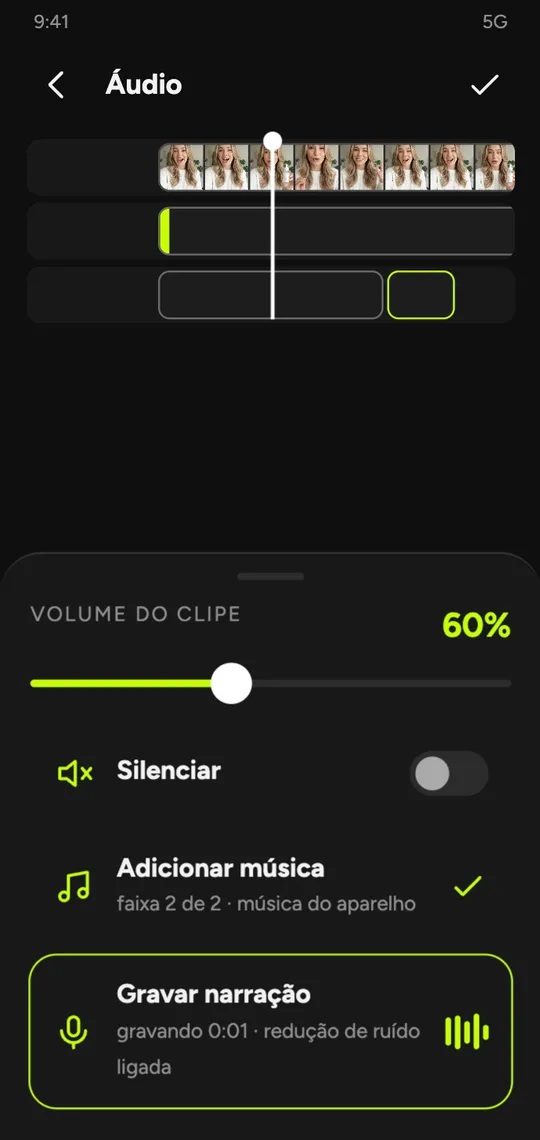
Mobile app2 min
How to draw volume and add audio on your phone
Draw a volume line with points on the audio track, mute, add music or record a voice-over in the ZiggCut mobile app.
In shortControl volume per moment, not just per clip.
Where to find it: Audio
The app is on Google Play. Some screens in these steps come from the design prototype and may differ slightly from the current app.
- Step 1
Open Audio
Tap the clip and then Audio.
- Step 2
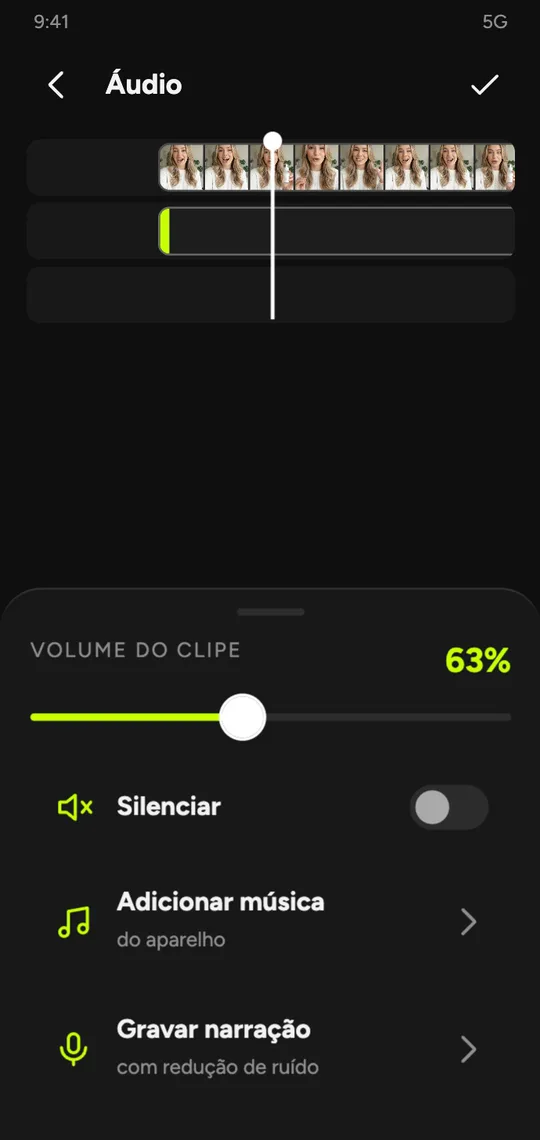
Draw the volume
Drag points on the audio line to lower the music when you speak. It works the same way as on desktop.
- Step 3
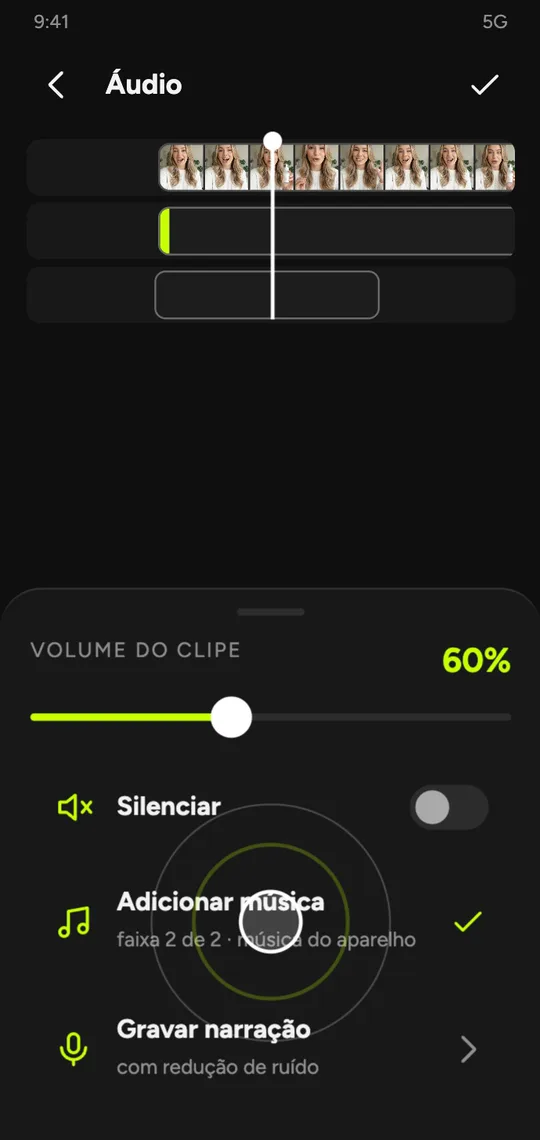
Mute, add music or record
Tap Mute, Add music from device or Record voice-over with noise reduction.