Desktop3 min
How to export for Reels, TikTok, YouTube and more
Export once for each network: choose a destination, format, resolution and codec, with loudness and bitrate set for each platform.
In shortPick a destination preset and ZiggCut sets bitrate, color tags and loudness so the video survives the platform's re-encode.
Where to find it: Export button · right panel → Export
- Step 1
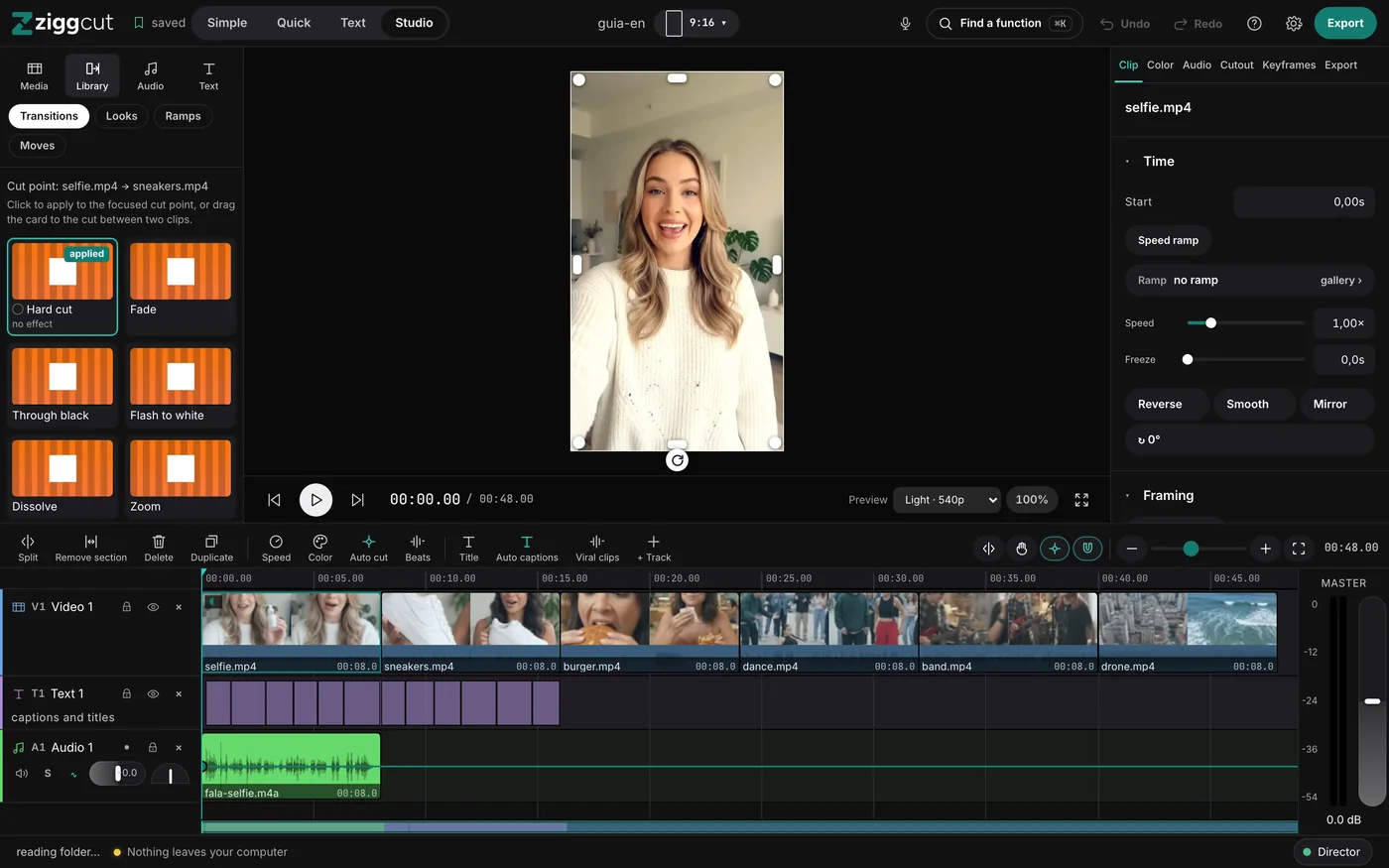
Choose the format
Pick the aspect ratio from the format menu at the top: 9:16, 1:1, 4:5, 16:9, 21:9, 2.39:1 or 2:3, or choose a network by name.
- Step 2
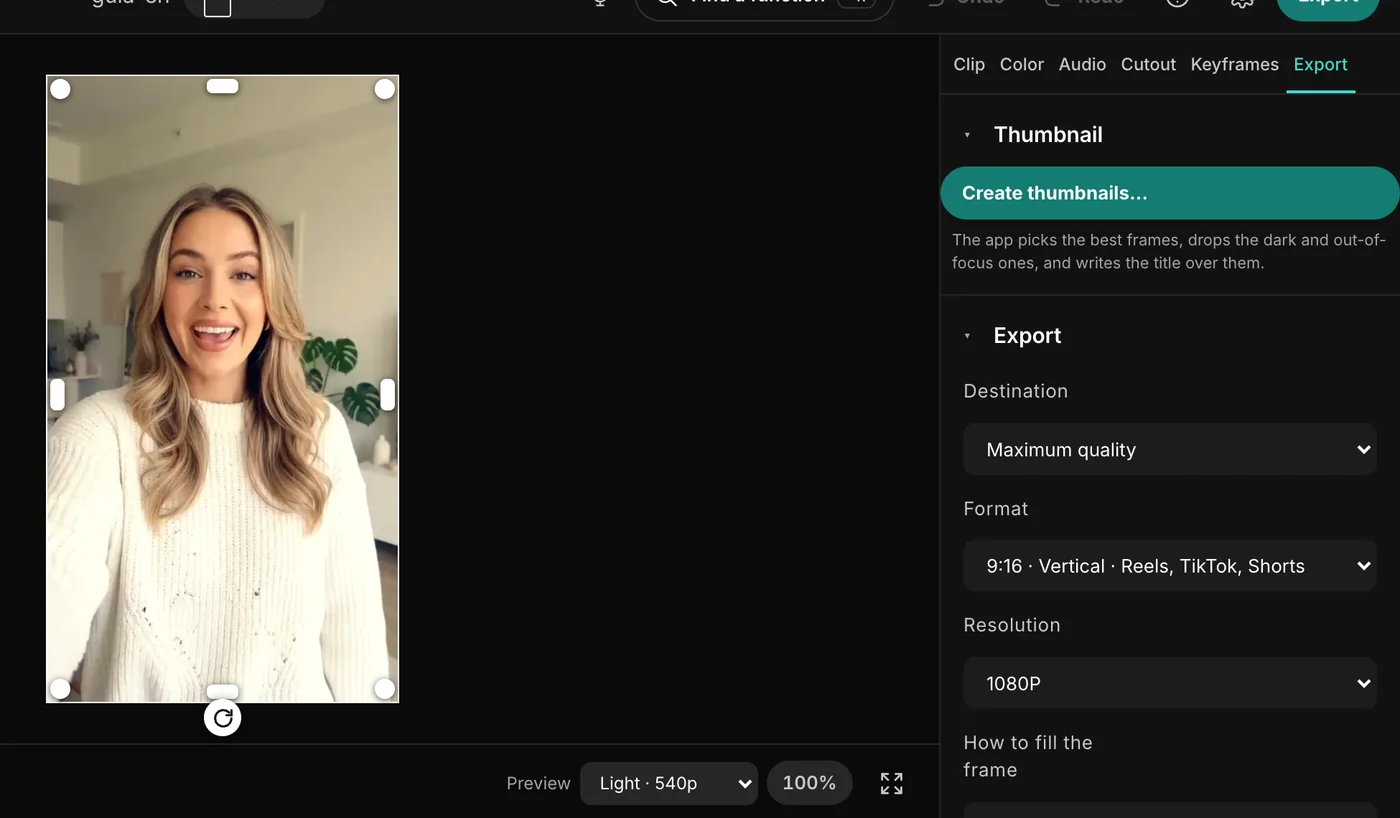
Open the Export tab
Choose destination (Instagram, TikTok, Shorts, YouTube, Facebook, Threads, LinkedIn, Pinterest, X, WhatsApp, Kwai, Snapchat or maximum quality).
- Step 3
Set resolution and codec
From 1080p to 8K and H.264, H.265, ProRes, DNxHR, VP9, AV1 or GIF.
- Step 4
Export
Press Export. The video comes out with no watermark; the 1-second end card goes away with one click, free.